
All credit to the Slimbox Team for this guide.
Be aware you need to follow this guide to the letter or it may brick your box
Instructions for installing firmware via Phoenix Suit Tool
These are instructions on how to flash or install.img firmware (ROM) using the Phoenix Suit Tool on Allwinner chipset devices. Warning. Reflashing or installing firmware (ROM) using PhoenixSuit will remove data from the device. Therefore, we recommend that you back up your data before using the tool.1. Driver installation
Unzip a file named PhoenixSuit.zip to disk E.
1.1 Press and hold the TV box update button (button in AV hole) and then connect the TV box to the computer via USB AA cable; open the computer's device manager and see the Unknown device.
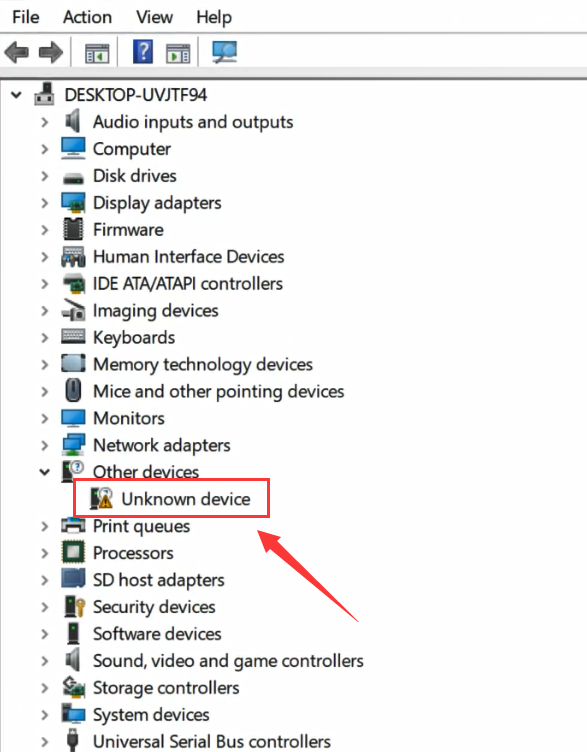
1.2 Right-click an unknown device and select the «Update Driver» option.
Then set the path to the disk:
E:\PhoenixSuit\Drivers\AW_Driver
(Driver file path just unzipped)
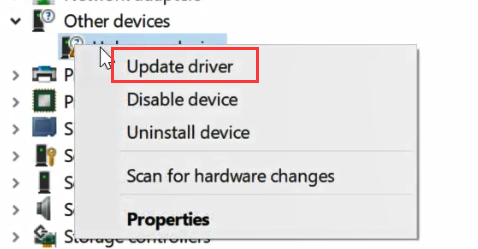
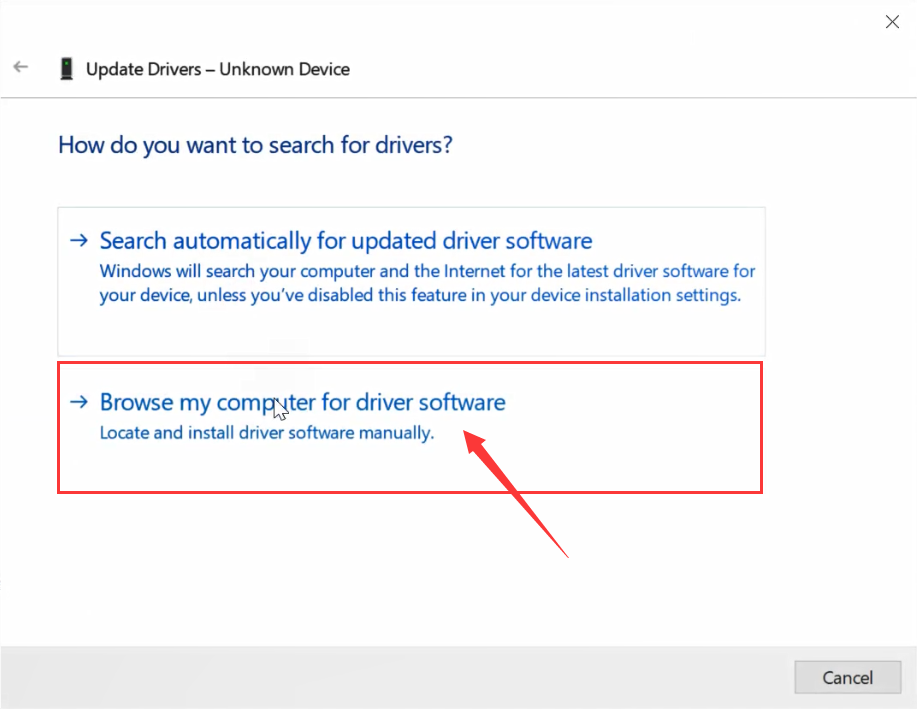
View the <driver file you just unpacked>
Follow the clues to the next step
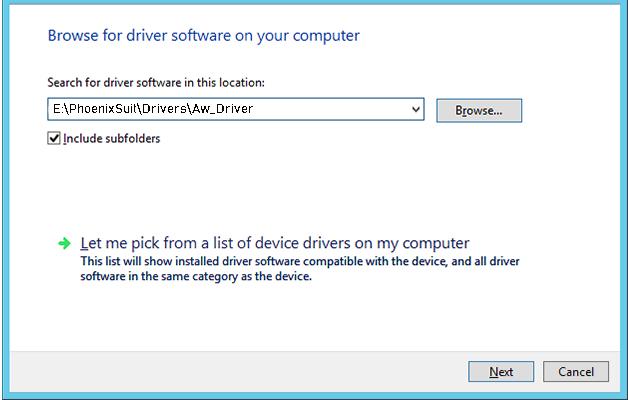
1.3 Once the setup is complete, download to log into the installation driver. Click on all pop-ups to confirm until installation is complete.
1.4 You have Windows 11 and the drivers are not installed, try it disable kernel isolation
2. Install.img firmware (ROM) with PhoenixSuit
2.1 Download the standard firmware (based on .img) of your device
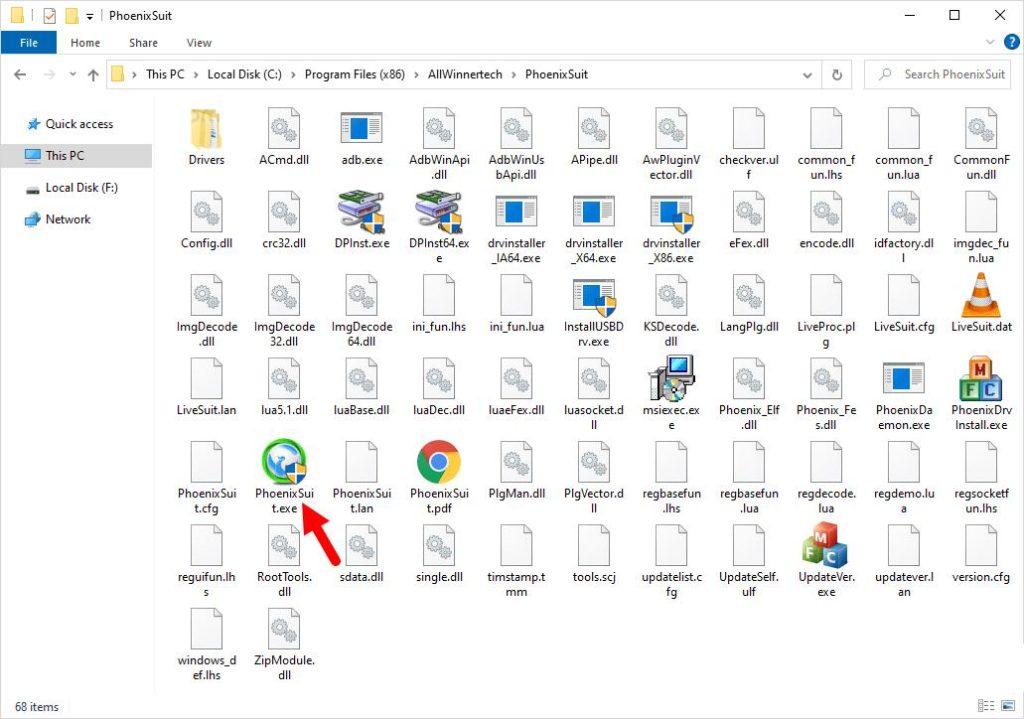
2.2 Start/open the PhoenixSuit application from the «Start» menu or directly from the E: PhoenixSuit.exe disk
(Unzip the tool on disk e and run PhoenixSuit.exe to open the tool)
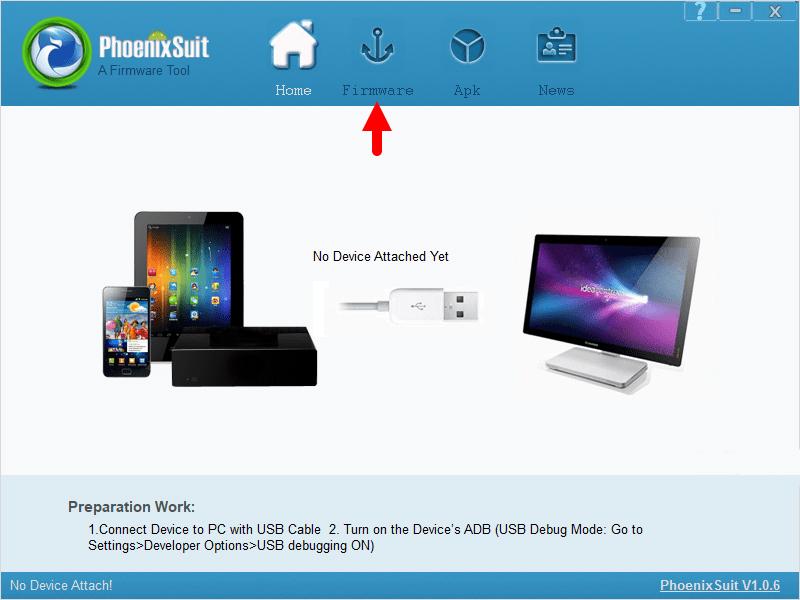
2.3 After running the PhoenixSuit app, click the «Firmware» menu.
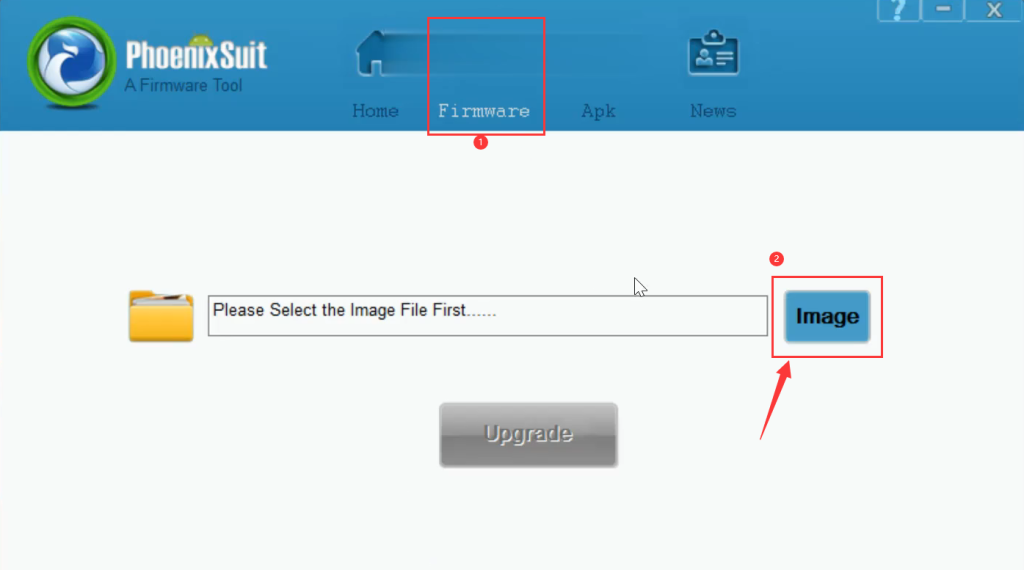
2.4 In the «Firmware» menu, click the «Image» button and select the firmware file (.img) from the computer (which you downloaded in the step) 2.1). Then click the «Update» button.
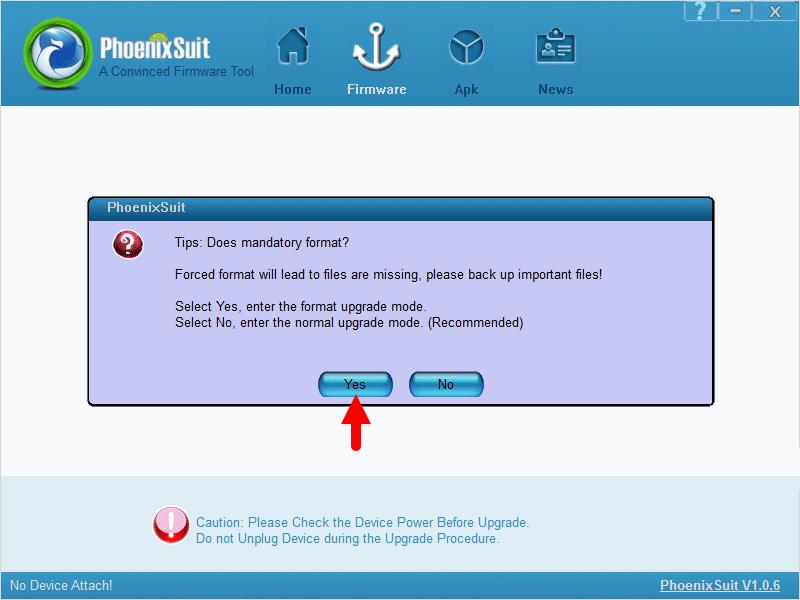
2.5 Start recording: press and hold the update button in the AV hole, connect the set top box to your computer via the USB AA cable; once Phoenix Suit detects the device, it will ask you for a mandatory formatting. Just press «Da» to continue.
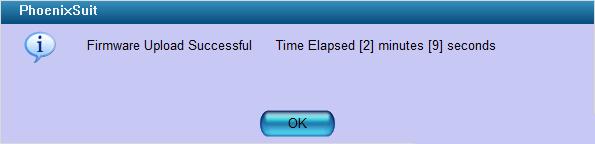
2.6 Once the flash/installation process is complete, you will be able to see a message about a successful firmware update on your computer screen. Click OK to complete the reflash.
2.7 Close the PhoenixSuit app and disconnect your Android device from your computer.
Attached is the version of Pheonix suit i have.