You are using an out of date browser. It may not display this or other websites correctly.
You should upgrade or use an alternative browser.
You should upgrade or use an alternative browser.
Guide Downloader removed from Firestick and suspended from Amazon - how to get it back.
- Thread starter HiTecK
- Start date


moshibeth
VIP Member
Throw it in the bin and get a proper android Tv device you will not have any issues with those. Its only going to get worse using amazon sticks trying to install 3rd party apps.ERR-SSL-PROTOCOL-ERROR is all I get when I go to download I’ve tried everything even factory reset but still no luck, any help would be greatly appreciated.

ERR-SSL-PROTOCOL-ERROR is all I get when I go to download I’ve tried everything even factory reset but still no luck, any help would be greatly appreciated.
The ERR_SSL_PROTOCOL_ERROR in the Downloader app on a Firestick typically indicates that the app cannot establish a secure connection (HTTPS) with the server, often due to incorrect time settings, outdated app versions, or network restrictions.
Here are the most effective, step-by-step solutions to fix this issue:
1. Fix Incorrect Date & Time (Most Common Cause)
If your Firestick's date and time are incorrect, it cannot validate SSL certificates.
Go to Settings > My Fire TV > About.
Select Network and check if the time is accurate.
If incorrect, go to Settings > Preferences > Time Zone and set it correctly. Sometimes toggling the network connection off and on can also sync the time.
2. Clear Downloader App Cache/Data
Corrupted cache files can prevent secure connections.
Go to Settings > Applications > Manage Installed Applications.
Select Downloader.
Select Clear Cache and then Clear Data.
Reopen the app and try the download again.
This video demonstrates how to clear the cache and data for the Downloader app:

rockape
Newbie
Thanks for your help but lI have done all that.The ERR_SSL_PROTOCOL_ERROR in the Downloader app on a Firestick typically indicates that the app cannot establish a secure connection (HTTPS) with the server, often due to incorrect time settings, outdated app versions, or network restrictions.
Here are the most effective, step-by-step solutions to fix this issue:
1. Fix Incorrect Date & Time (Most Common Cause)
If your Firestick's date and time are incorrect, it cannot validate SSL certificates.
Go to Settings > My Fire TV > About.
Select Network and check if the time is accurate.
If incorrect, go to Settings > Preferences > Time Zone and set it correctly. Sometimes toggling the network connection off and on can also sync the time.
2. Clear Downloader App Cache/Data
Corrupted cache files can prevent secure connections.
Go to Settings > Applications > Manage Installed Applications.
Select Downloader.
Select Clear Cache and then Clear Data.
Reopen the app and try the download again.
This video demonstrates how to clear the cache and data for the Downloader app:
rockape
Newbie
It’s both mecool and z11 pro.Throw it in the bin and get a proper android Tv device you will not have any issues with those. It’s only going to get worse using amazon sticks trying to install 3rd party apps.
moshibeth
VIP Member
You can loads apps via usb or better still use aptoide app store.It’s both mecool and z11 pro.

Aristotle
VIP Member
Downloader is again available from the Google playstore.Thanks for your help but lI have done all that.

Yeah firesend mike123 put a guide up here

There's been a few reports going around that if you try to install downloader on new devices it won't install directly from app store. I can't confirm. If you have it already installed I believe its fine. Luckily there is a work around
1. Goto search and look for firesend and install
2 goto settings and allow firesend to install from unknown sources
3 open firesend and join room
4 enter code DLFILE27
5 you should see downloader file and install it
This is for new firesticks with fresh installs
If you get problems download firesend app on your phone then create a room get links to...
1. Goto search and look for firesend and install
2 goto settings and allow firesend to install from unknown sources
3 open firesend and join room
4 enter code DLFILE27
5 you should see downloader file and install it
This is for new firesticks with fresh installs
If you get problems download firesend app on your phone then create a room get links to...
- mike123
- Replies: 3
- Forum: IPTV Guides Support, Downloads and Discussions


i meant in the firesend app, if you choose browser on the left, you can enter the downloader code into the firesend app directly.Yeah firesend mike123 put a guide up here
There's been a few reports going around that if you try to install downloader on new devices it won't install directly from app store. I can't confirm. If you have it already installed I believe its fine. Luckily there is a work around
1. Goto search and look for firesend and install
2 goto settings and allow firesend to install from unknown sources
3 open firesend and join room
4 enter code DLFILE27
5 you should see downloader file and install it
This is for new firesticks with fresh installs
If you get problems download firesend app on your phone then create a room get links to...
- mike123
- Replies: 3
- Forum: IPTV Guides Support, Downloads and Discussions
no need for downloader app. (not actually tried it though)

HappyHotspur
Member
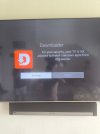
Yes. Click settings then turn on/allow for downloader.This is what I get on my Firestick when trying to use downloader to install smarters or tivimate
Is there anything I can do?